How to approve leave with team coverage in view
A leave decision is easy when you can see who else is out. Sparko People puts balances, overlaps and coverage next to every request, so managers approve in seconds and teams stay covered.
Spot coverage risks before they happen
Open Time & Leave. Managers see a to approve pill in the header and, from Growth, a Coverage signals card. It scans the next 30 days and flags dates when two or more people on the same team are out at once, rated Watch, At risk or High risk by the share of the team affected.
A manager sees only their own reporting line; HR sees every department. Signals count pending requests too, so a risk shows up before anyone approves it.
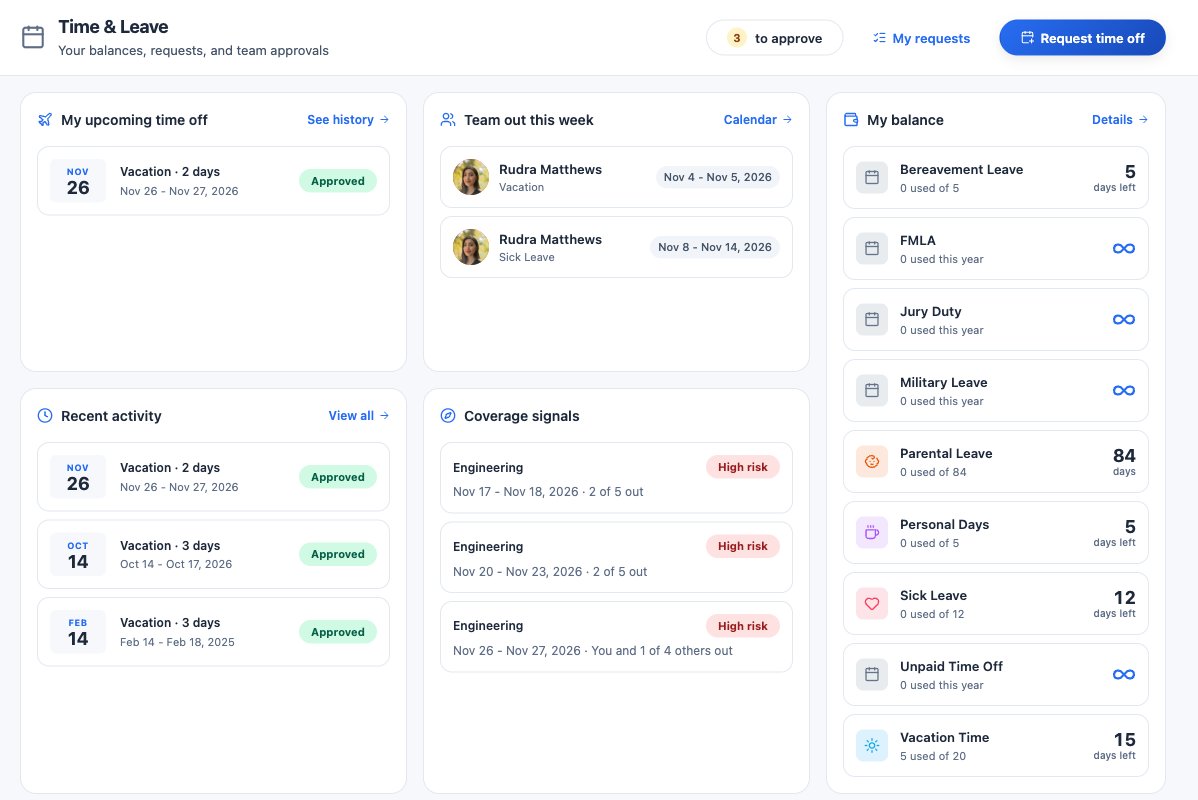
The dashboard: balances, who is out this week, and coverage signals for the next 30 days. See who's out in the team calendar
Select a signal, or open Calendar, to see the month for your team. My team, Department and All change the scope, and public holidays sit on their dates.
The calendar shows approved time off for everyone the coverage signal counts, the manager included. Pending requests stay in your approval queue until you decide them.
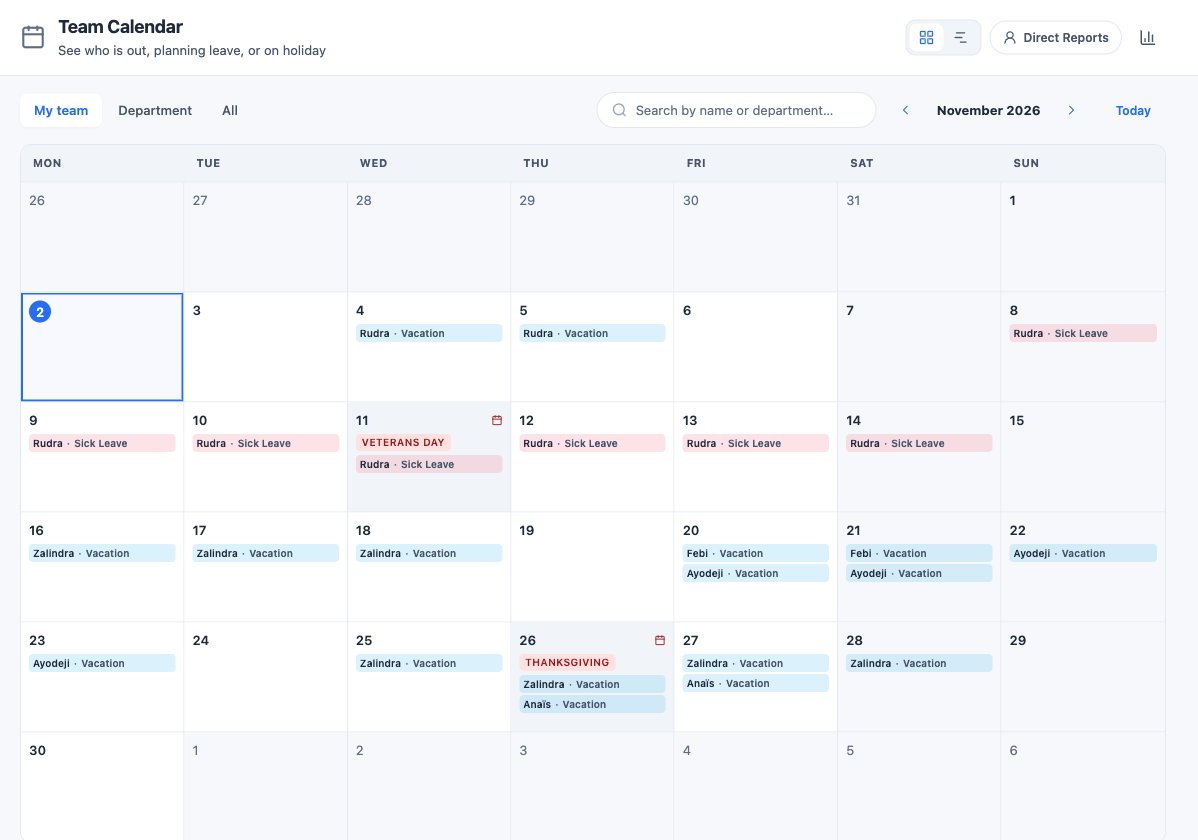
The team calendar: approved time off and holidays for the month. Clear the queue in one drawer
Select to approve. Time off and timesheets appear as separate groups, oldest first. Approve on a time-off row opens the request with its live coverage before anything is decided.
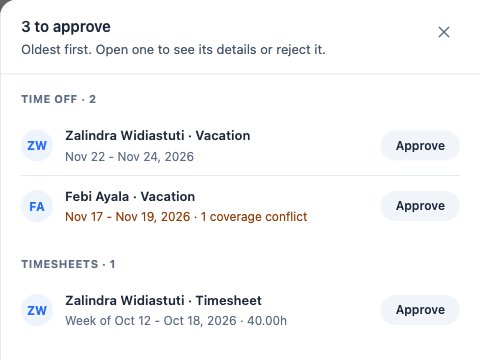
Leave and timesheets waiting on you, with coverage conflicts flagged on the row. Check coverage before you decide
The Approve request window puts the decision in one place: the employee's reason, the days requested, the balance after, the notice given, and their recent requests.
Team coverage lists teammates who are off during the same window, with their dates, read live when you open the request rather than from when it was submitted. Select Summarise for a short AI summary of what the numbers do not show; it never tells you to approve or deny. Then choose Approve request or Reject with reason.
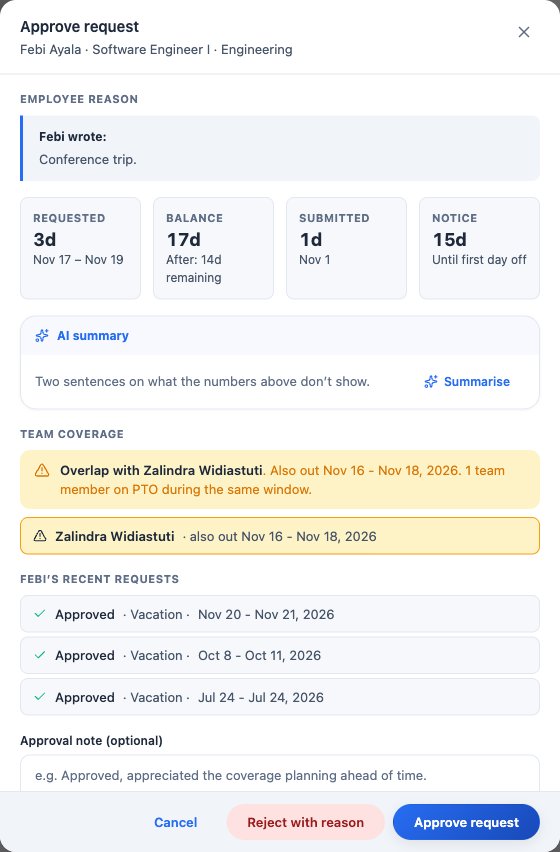
The approval window, with the teammate who is already out on the same dates. Work through the full queue in My Hub
My Hub › Approvals shows the full queue in one list: leave and timesheets, plus review sign-offs and development milestones when they are waiting on you. Each leave request carries the balance before and after, and whether it overlaps with anyone else on the team.
To decline because of timing, suggest other dates: pick how far to move it and Sparko works out dates covering the same number of working days, skipping weekends and that person's holidays. Nobody can approve their own request.
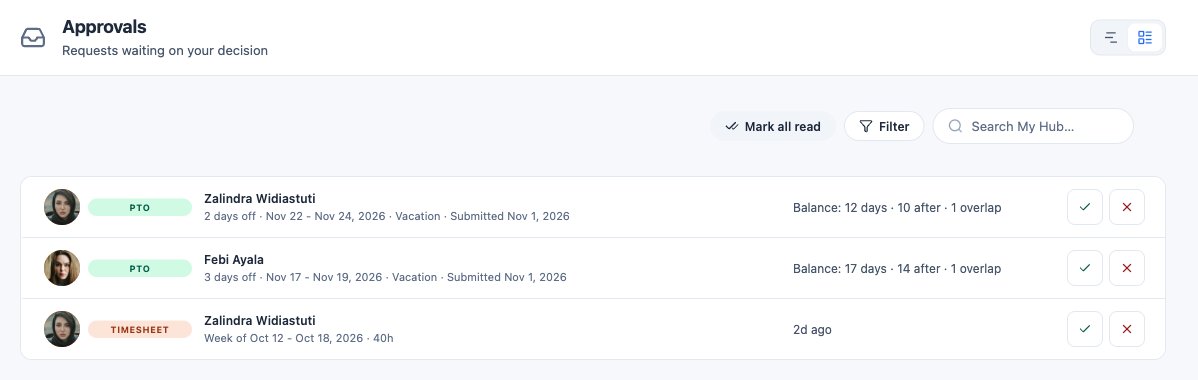
My Hub: every approval in one list, with the balance and overlap on each leave request.
What each plan includes
Plans are Core, Growth, Business and Custom. Compare plans and prices.
Questions
Can a manager approve their own leave?
No. Nobody can approve or reject their own time off, whatever their role. Sparko skips that step and passes the request to the next approver.
What counts as a coverage risk?
Two or more people on the same team out on the same dates within the next 30 days. The severity reflects the share of the team affected.
Can I approve timesheets in the same place?
Yes. The to approve drawer and My Hub list submitted timesheets alongside leave requests.
Try it in your own workspace. Sparko People is free for 14 days, no credit card required.