How to fill shift gaps fast
For teams that work shifts, the roster is where a sick call or an unfilled slot becomes a problem. Sparko People shows every gap before the day comes and ranks who can cover it, within your rest and hours rules.
Roster generation in Sparko is rule-based: it follows your shift templates, crew patterns and coverage rules. Everything in this guide is on the Core plan.
Generate the roster from your rules
In Time & Leave › Roster, select Generate roster and choose this week, this month or further ahead. Sparko fills open days from the site's shift templates, the patterns your crews follow and the coverage rules.
It never rosters someone on approved leave, never breaks the 11 hours of rest between shifts or the 48-hour week, and keeps every shift already on the roster.
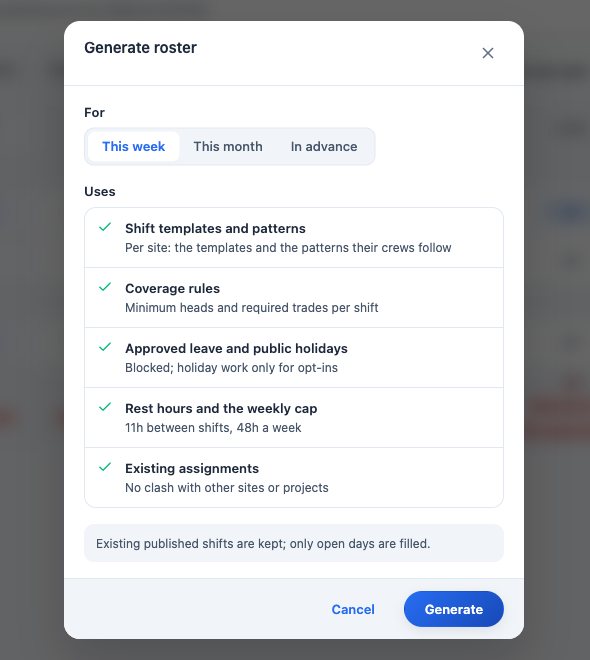
Generate roster lists exactly what it uses before you run it. See every gap before the day comes
Cover rows under the grid show heads against the minimum for each shift and day. A red count is a gap. The coverage gap pill counts every gap in the week.
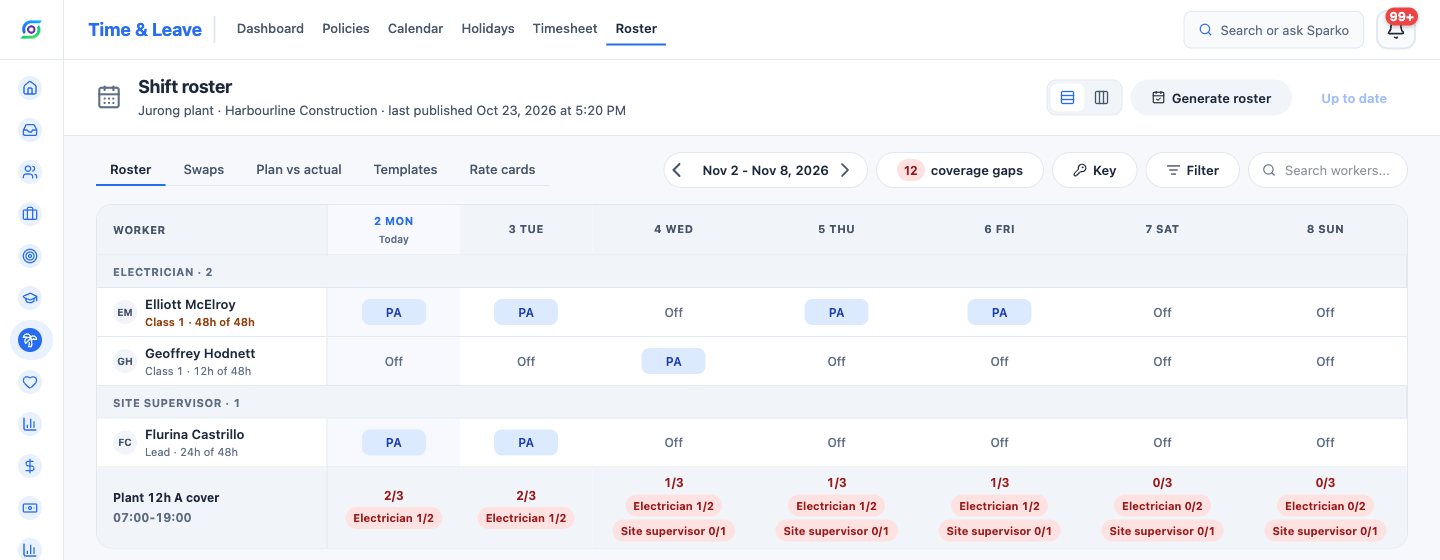
Cover rows show each shift's heads against the minimum, per day. Work through the gap list
Press the coverage gap pill to list every gap for the week, each with a Fill button.
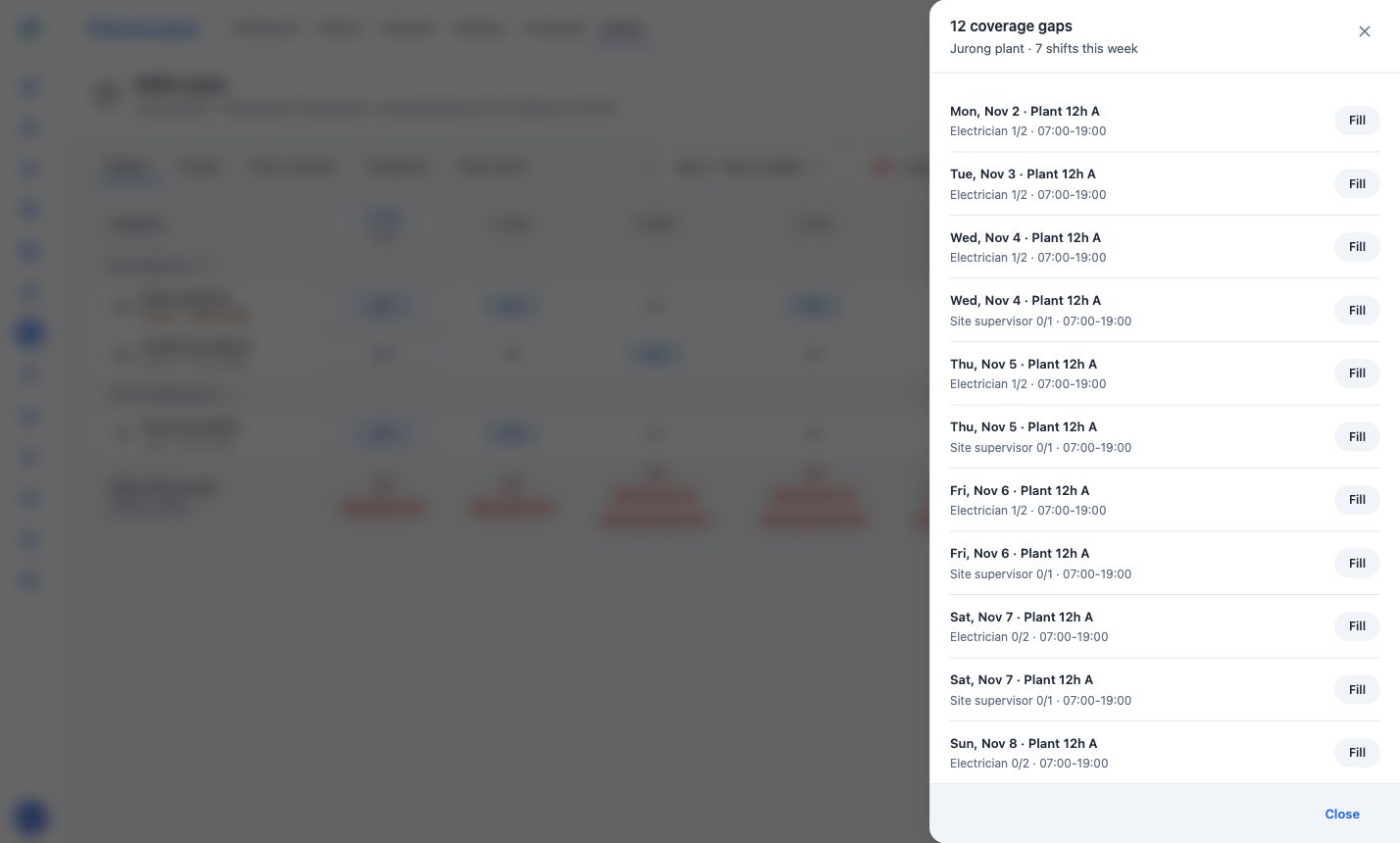
Every gap for the week, each one a click from its replacements. Pick a replacement and notify them
Select Fill, or a sick worker's cell, to see who can take the shift: the same trade only, people at the same site first, then other sites, then the shared pool. Each candidate shows rest hours, the week's hours and why anyone is not eligible.
Assign and notify puts the replacement on the shift and tells them in Sparko straight away, without waiting for the next publish.
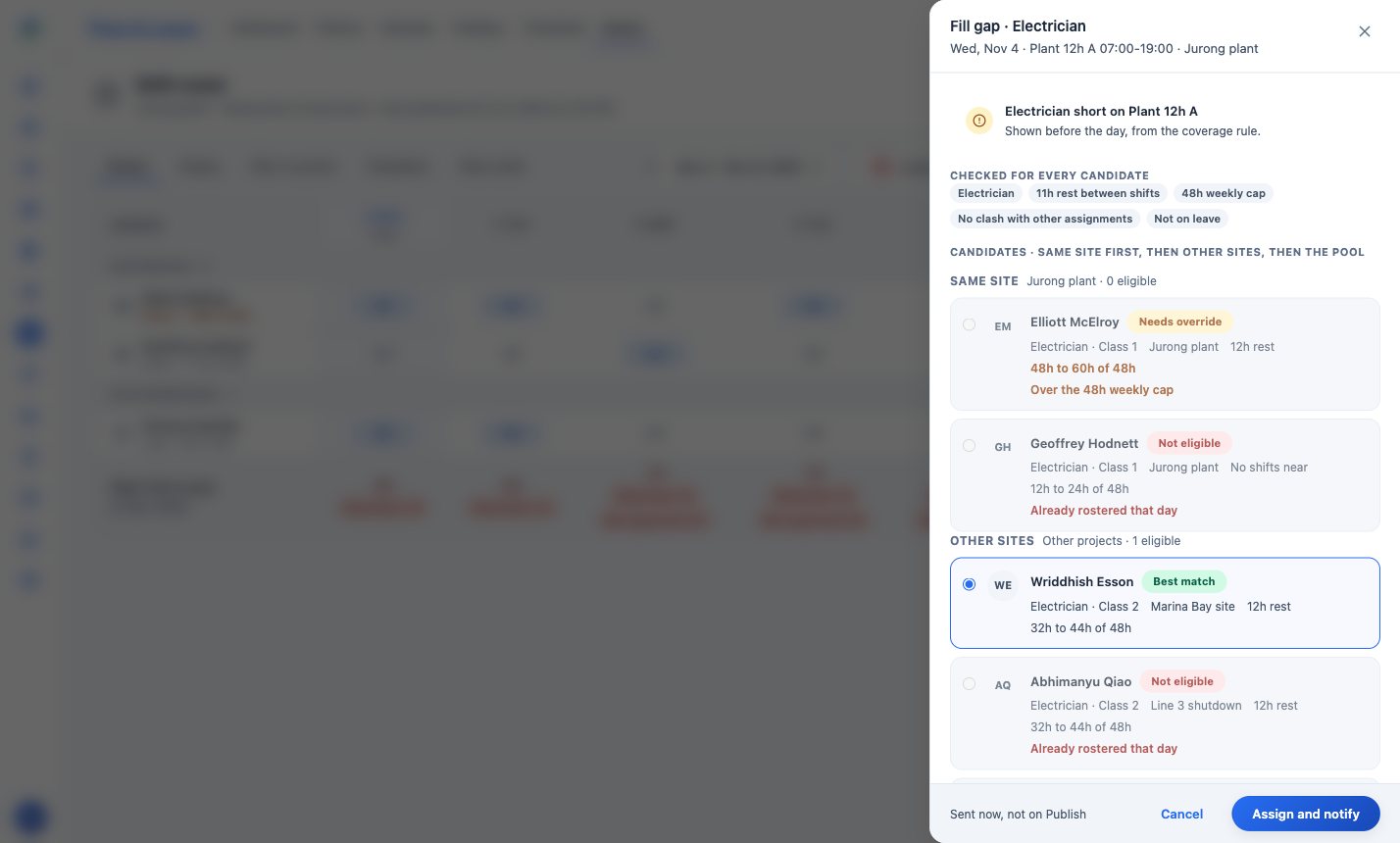
Candidates ranked same site first, with every rule checked and the reason shown. Approve swaps that pass the rules
Workers ask to swap a shift with a colleague of the same trade. Sparko checks rest, the weekly cap and leave when they ask and again when you decide, so a swap that breaks a rule says so and cannot be approved.
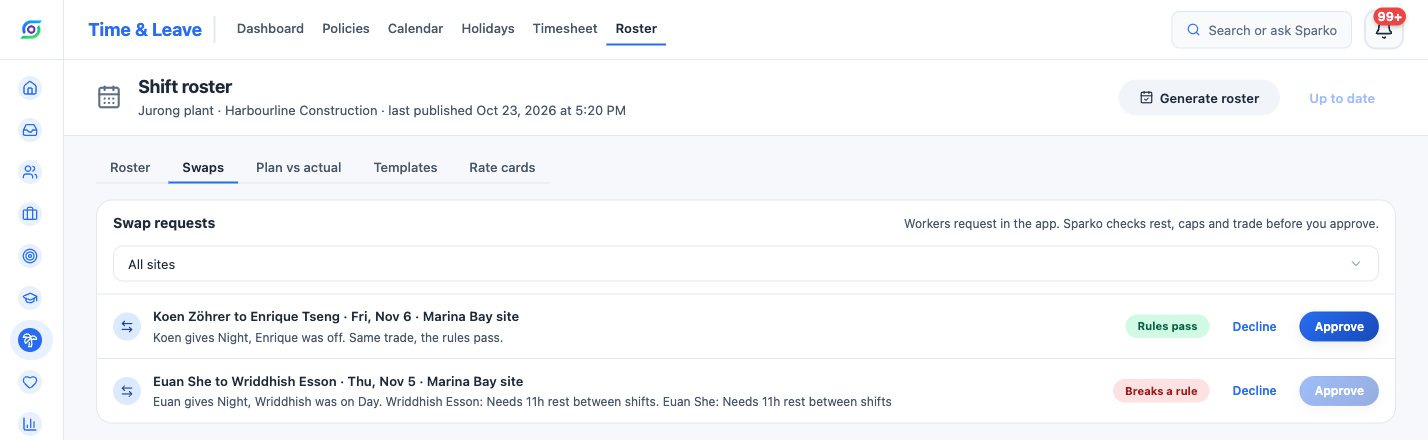
Swaps arrive already checked against rest, the weekly cap and trade.
What each plan includes
Plans are Core, Growth, Business and Custom. Compare plans and prices.
Questions
Is roster generation done by AI?
No. It is rule-based. It follows your shift templates, crew patterns and coverage rules, and respects approved leave, 11 hours of rest between shifts and the 48-hour week.
Does generating a roster change shifts already planned?
No. It keeps every shift already on the roster and fills only open days.
When do workers hear about a change?
A replacement chosen with Assign and notify is told straight away. Other edits go out when you publish, with one notice to each worker whose shifts changed.
Can I compare the plan with the hours actually worked?
Yes. Plan vs actual compares each shift that has started with the hours on the timesheet: on time, late, overtime, missed clock-out, hours at another site, sick or no hours.
Try it in your own workspace. Sparko People is free for 14 days, no credit card required.