How to run payroll from approved hours
In Sparko People, payroll starts from the same records as time and leave. Hours people log and managers approve flow into the next pay run, together with allowances, approved expense claims and statutory contributions for the countries Sparko has rules for.
HR checks the run, finalizes it, and hands the files to the bank or accountant. Sparko prepares the payment files and payslips; paying and filing stay with your company.
Hours start on the timesheet
People log time in Time & Leave › Timesheet, with Clock in or by adding an entry for the day. Time beyond the working day shows as overtime on the entry, and Submit week sends the week to the manager, who approves it with leave requests in the same queue.
Workers on client projects log hours under Client work, approved by the client contact or a supervisor.
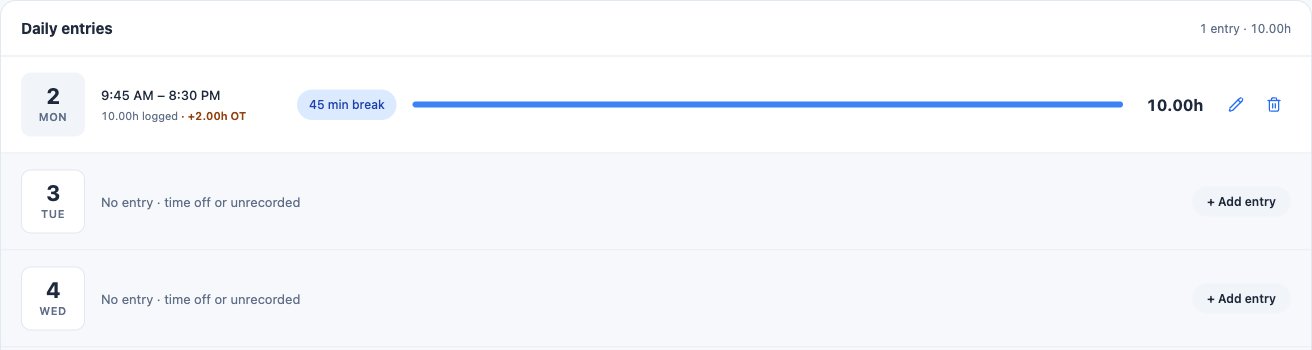
A day on the timesheet, with the overtime it adds. Open the draft run
Go to Payroll › Payroll Runs. The header shows the period, the pay date, the headcount and a Draft badge, with Recompute and Finalize beside it. Runs lists every run by entity, and New run starts one.
The table shows each person's Wage gross, any Reimbursements from approved expense claims, Deductions and Net pay, with a run total. The tabs All, Needs a look and Ready split the list.
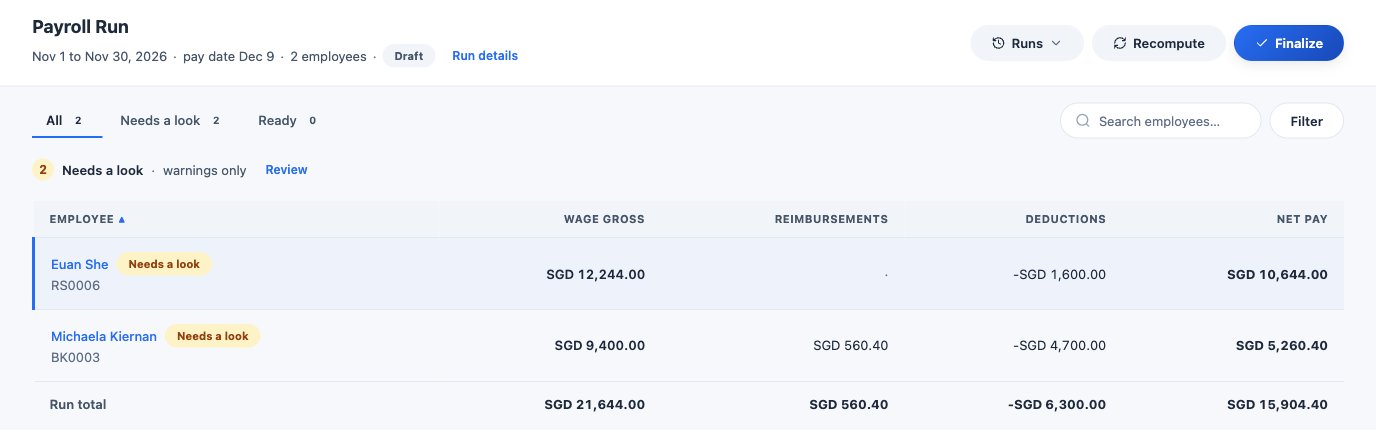
A draft run: gross, reimbursements, deductions and net pay for each person. Clear what needs a look
Select Review to open Needs a look. Before you finalize, Sparko checks the run against your payroll rules: minimum wage, overtime caps, deduction caps, pay-day and final-settlement deadlines, missing statutory ids, rules still tagged To check, and lapsed work permits. Each flag names the rule and links to its official source.
A Blocks finalize flag needs a fix, or an override with a reason by someone allowed to override. A Warning needs an Acknowledge. Run checks again re-runs everything after a fix.
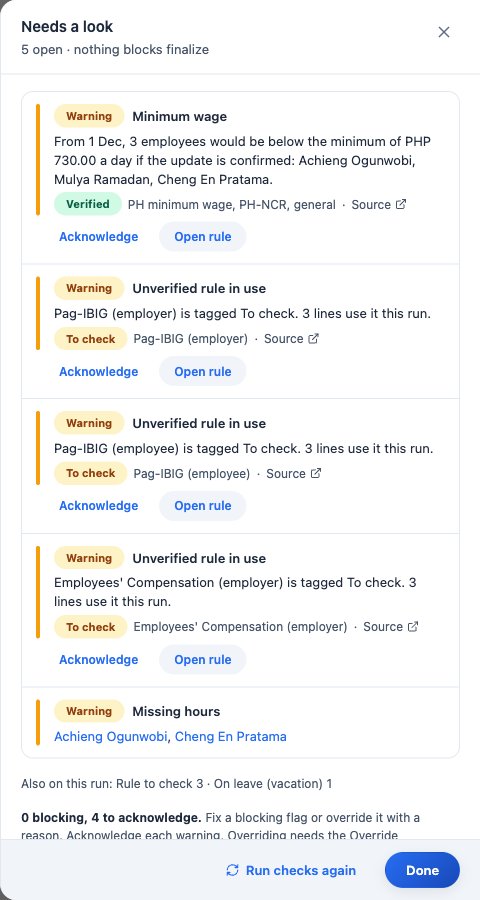
Checks on a Philippines run, each with its rule and source. See how hours became pay
Select a person to open their line. It shows their pay basis, the approved hours in the run, statutory amounts, a verified bank account, and every earning, deduction and employer item. Here 78 overtime hours become an Overtime line next to base pay and allowances.
A run pays every approved hour dated up to the pay group's cut-off that was not paid before. Hours approved after the cut-off are paid in the next run, and an hour is never paid twice. Recompute picks up hours approved since the run was created.
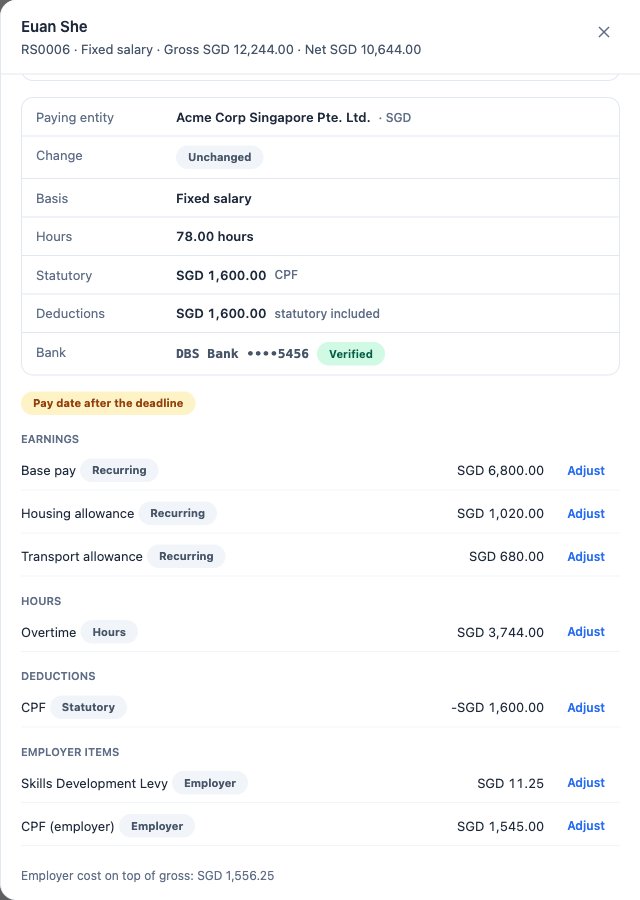
One person's line: base pay, allowances and the overtime from approved hours. Finalize and hand over the files
Run details holds the pay date, gross and net, the employer cost on top of gross, and a comparison with the previous run. Set the pay date, then Finalize. Finalizing freezes the run, so every download afterwards is identical.
After you finalize, Download files offers a CSV on every plan, and on Business the SG GIRO, ACH/NACHA, SEPA and UAE WPS bank files. Upload the file to your bank. Each person gets a payslip in their own Documents tab.
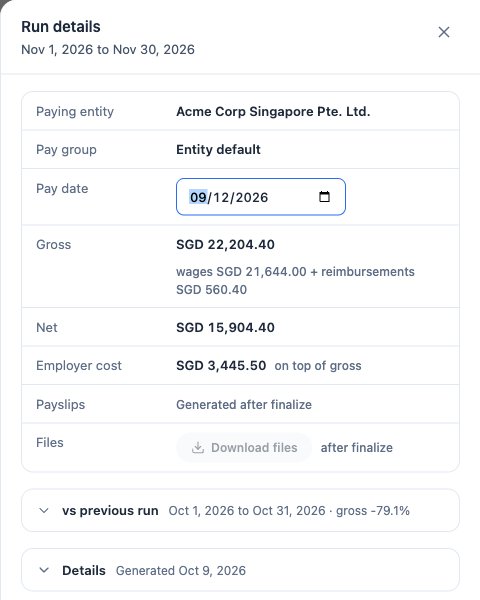
Run details: totals, employer cost and the files you get after finalizing.
What each plan includes
Plans are Core, Growth, Business and Custom. Compare plans and prices.
Questions
Does Sparko pay my employees?
No. Sparko prepares the run, the payslips and the payment file. You upload the file to your bank, and statutory filing stays with you or your accountant.
What happens to hours approved after the cut-off?
They are paid in the next run as arrears. Every approved hour is paid once, and none is lost.
Which countries have payroll rules?
India, the UAE, Singapore, Malaysia, Indonesia, the Philippines, Australia, Japan and Vietnam have seeded rules, and so do the contributions of the UK, the US, Germany, Hong Kong, Canada, Saudi Arabia and Qatar.
Can managers see their reports' payslips?
No. Each employee sees and downloads their own payslip. Payroll runs are for HR admins.
Try it in your own workspace. Sparko People is free for 14 days, no credit card required.